How do I cancel or reschedule a booking?
Last updated: 2026-08-30
Click a booking card on the admin calendar to open its detail view.
- Reschedule: drag the booking card to a different time slot on the calendar.
- Cancel: click "Cancel" in the detail view.
- No-show: mark a booking as "No-show" if the customer didn't turn up.
- Complete: mark a booking "Completed" once the service is done — this is what makes loyalty/points tracking (Growth+) count it.
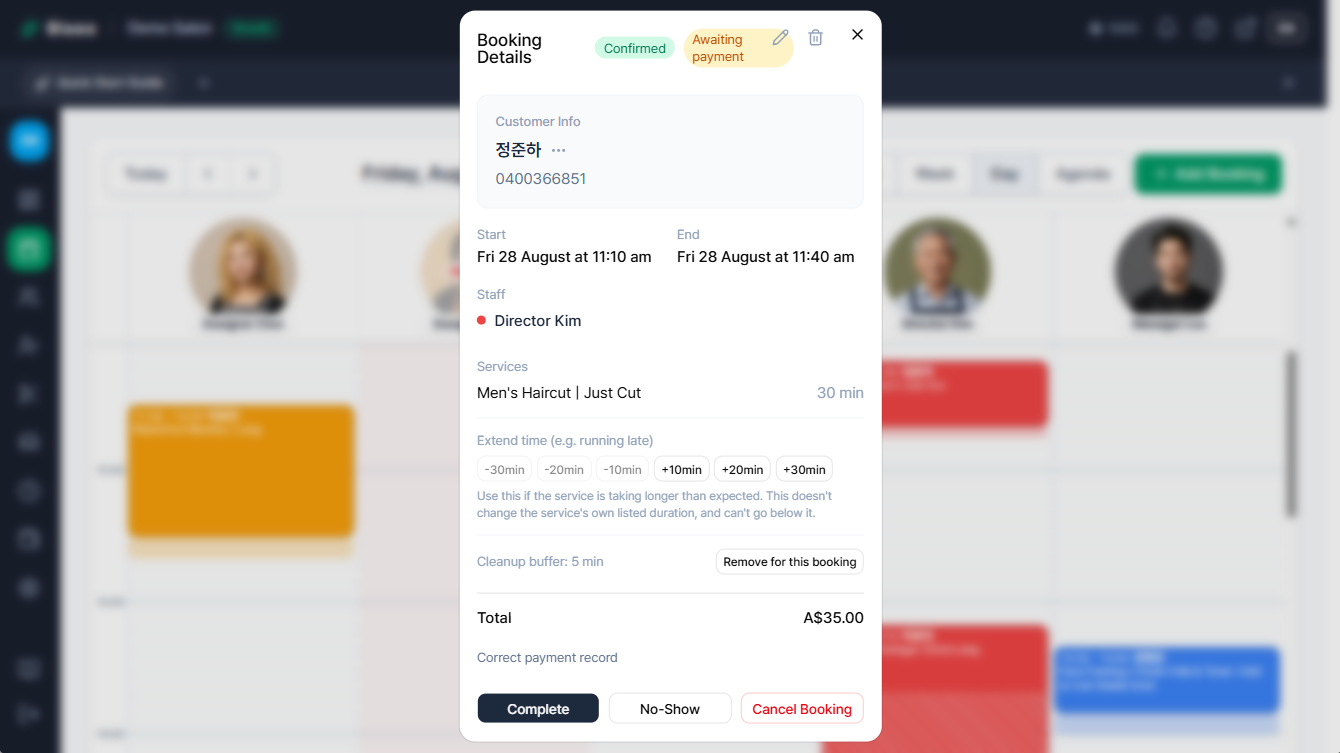
Bookings marked completed, cancelled, or no-show can no longer have their time changed. If you clicked the wrong one, use the "Revert Status" button in the detail view to put it back to confirmed — once reverted, the time can be changed again too.
Example: at "Relax Spa" massage studio, customer A's 2pm appointment runs late and has to move to 3pm. The therapist simply drags A's booking card from the 2pm slot to the 3pm slot on the calendar. Later that day, customer B — booked for 4pm — never shows up and doesn't answer calls, so the front desk opens B's card and marks it "No-show". Meanwhile customer C's 5pm massage finishes on time and must be marked "Completed" — that's what makes it count towards Growth-plan loyalty points. If staff forget to mark C's booking completed and just leave it as-is, the visit is effectively invisible to the points and visit-history tally, so later reporting undercounts C's real visits.
I marked it completed by mistake — what happens to the payment record if I revert it?
If you recorded a payment method when completing a booking (say, A$80 paid in full by cash), clicking "Revert Status" doesn't automatically cancel that payment record. Reverting only puts the booking's status back to confirmed — the record of money actually collected stays exactly as it was.
Example: staff accidentally marked a still-in-progress booking as "Completed" and recorded A$80 cash paid in full at the same time. They click "Revert Status" in the detail view to put the booking back to "Confirmed" — but the payment badge still shows "Paid in full". If the A$80 was never actually collected (the completion was just a mis-click), that payment record needs to be reversed from "Correct payment record" at the bottom of the detail view before the badge goes back to being accurate.
- If nothing was recorded when it was completed, reverting leaves the badge at "Pending" as before.
- If you mark it completed again afterward, you can record the payment method fresh at that point.
Does the customer get notified automatically?
Booking-changed, cancelled, and reminder notifications are available on the Growth plan and above. Free and Starter only send the booking-confirmed notification. Reminders send automatically 24 hours before the appointment by default, and you can adjust that timing (anywhere from 1 to 168 hours before) under Settings > Notifications, in the "Reminder timing" field. In the example above, if Relax Spa is on the Growth plan, dragging customer A's booking from 2pm to 3pm automatically fires a change notification to A. On the Free or Starter plan, the same drag-and-drop reschedule sends no notification at all, so staff need to call or text A themselves to confirm the new time.
Customers can cancel their own booking too
Booking-confirmed, changed, and reminder notifications all include a customer-facing view/cancel link (/my-booking/...). Customers can open it without logging in to see their booking details, and cancel it themselves if they're still within the cancellation window.
- The cancellation window is a per-shop setting, defaulting to 24 hours before the appointment. Past that point, the cancel button on the link is disabled and the customer sees a message telling them to contact the shop directly.
- A self-cancel through this link only changes the booking's status to "Cancelled" — it does not automatically process any payment or deposit refund. Staff still need to decide that manually from the booking detail view.
- When a customer self-cancels, both a shop-wide admin alert and a personal alert to the assigned staff member go out (see Sending booking notifications to staff for the plan conditions on each channel).
- If the link gets lost or needs resending, staff can copy it again from the "Copy booking view/cancel link" button just below the customer's phone number in the booking detail view.
- The cancellation window, minimum lead time, and booking horizon are all configurable per shop under Settings > Booking Page, in the "Booking policy" section.
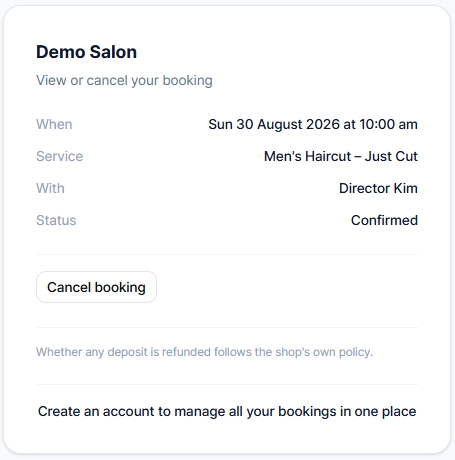
Example: customer D confirms a 2pm booking, gets the reminder text, then opens the link the night before and cancels it themselves because plans changed. If Relax Spa is using the default 24-hour cancellation window, this cancellation goes through and both the assigned therapist and the owner get notified immediately. If D instead opened the same link at 11am on the day of the appointment (3 hours before), the 24-hour window has already passed, so the cancel button is disabled and D just sees a message to call the shop directly.
Can't find what you're looking for? Contact us →