Automatic reassignment for requested bookings
Last updated: 2026-10-30
A client asks for Sophie, but at that time Sophie already has another client's booking that was made with "anyone". Normally that time simply disappears from the booking page, and you lose the client who asked for Sophie.
With automatic reassignment switched on, Biseo moves the "anyone" booking to another staff member who's free at the same time and takes the requested booking as well, so you keep both. It's available on every plan.
Switching it on
- Go to Settings > Booking Page.
- At the bottom of the "Booking policy" section, tick Automatic reassignment for requested bookings.
- Just below it, under Reassignment cut-off, choose how close to the start time bookings stop being moved: 2, 6, 12, 24, 48 or 72 hours before. The default is 24 hours.
- Click the section's save button.
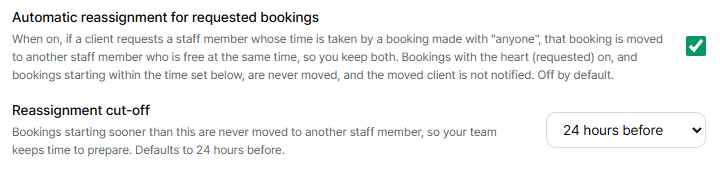
It's off by default. Because it changes who a booking is with without telling the client, we leave it to you to turn on knowingly.
Which bookings can be moved?
A booking is only moved if all of these are true:
- The heart is off (an auto-assigned booking). The client chose "anyone", or you turned the heart off.
- It's confirmed. Bookings awaiting payment, completed, cancelled or no-show bookings are never moved.
- It starts no sooner than your reassignment cut-off (24 hours by default), so staff keep their prep time. For example, with a 12-hour cut-off, a 10am booking tomorrow can only be moved until 10pm tonight.
- Another staff member is free at that time and does every service in the booking. Working hours, breaks and time off are checked too.
If any of these isn't true, the booking stays put and the time shows as unavailable to the client requesting that staff member.
Bookings that are never moved
- Bookings with the heart on (requested bookings) are never moved. Bookings you create yourself with a staff member picked start with the heart on, so only turn it off when the client says anyone is fine.
- Only one move at a time. Biseo won't move B's booking to C just to make room to move A's booking to B.
Who gets told what?
- The moved client is not notified. The date, time and services don't change, and that client was told "Auto-assigned" from the start. For bookings with the heart off, every client message and the client's booking page show "Auto-assigned" instead of a staff name.
- Staff are notified. The staff member taken off the booking gets a "removed from a booking" notification, and the one who takes it on gets a "new booking" notification. (See Sending booking notifications to staff.)
- In the admin: open a moved booking and you'll see "Reassigned (was …)" next to the staff member. If you later change the staff yourself, this label goes away.
Example: a hair salon in Sydney has two stylists, Sophie and Mia. Jack books a Saturday 10am cut on the booking page with "Any Available", and Biseo assigns him to Sophie. On Wednesday, Emma tries to book Sophie for the same Saturday at 10am. Automatic reassignment is on and Mia is free then, so 10am shows as available to Emma. The moment Emma books, Jack's booking moves to Mia and Emma's booking goes to Sophie with a heart. Jack was told "Auto-assigned" all along, so there's no need to contact him.
Common questions
I got a requested booking and an existing booking switched to a different staff member. That's automatic reassignment working as intended. The "Reassigned (was …)" label in the booking's detail view shows who it was with before. If you'd rather not have this, untick the box in your booking policy.
If the client who requested the staff member cancels later, does the moved booking go back? No. The moved booking stays with its new staff member. If you want, drag it back to the original staff member's column on the calendar.
What if a client asks who they're booked with? Your admin screens always show the real staff member, so just tell them when they call or visit. If you're not going to change it again, turn the heart on in the booking's detail view. From then on their messages show the staff member's name, and the booking is no longer eligible for automatic reassignment.
Can't find what you're looking for? Contact us →