Managing the waitlist when you're fully booked
Last updated: 2026-08-28
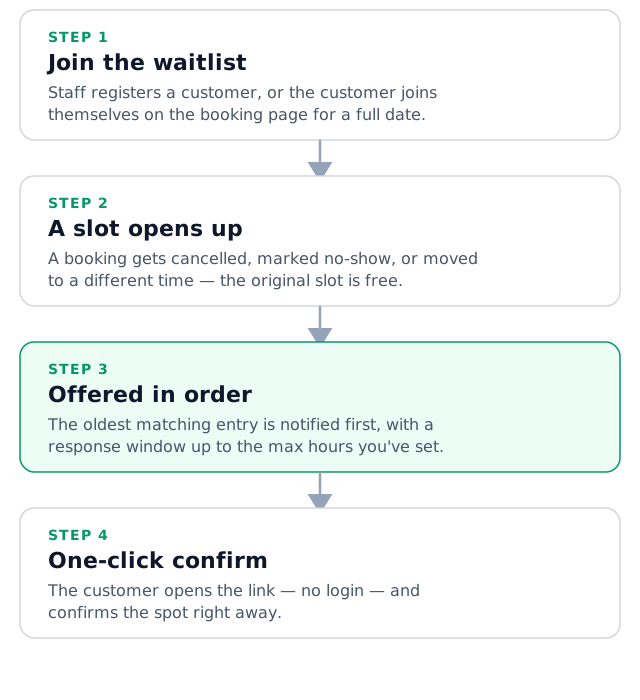
When a customer wants a time that's already taken, add them to the waitlist instead of turning them away. If that slot frees up later — a cancellation, a reschedule, anything — Biseo offers it to them automatically.
This feature requires a Growth plan or above, and registering entries needs the same permission as creating bookings (Owner or Manager by default).
Adding someone to the waitlist
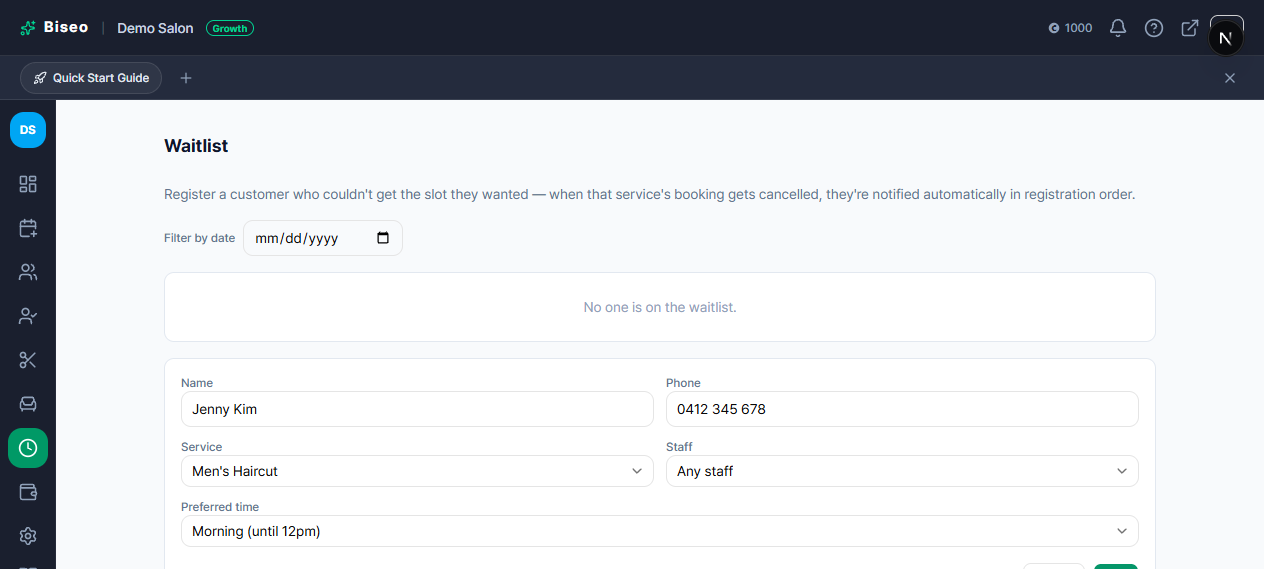
Open Bookings > Waitlist and click Add to waitlist. Search for an existing customer or enter a name and phone number, then choose the service, an optional preferred staff member (or leave it as "no preference"), and a preferred time window (morning, afternoon, or any time). The service picker opens as a category → service → option list where you can tick more than one item at once, so if someone's waiting on two or more services together — a perm and a cut, say — you can register them in one go. The entry stays on the list with a "Waiting" status until it's matched or removed.
Picking a specific date — when there's already an open slot
When adding someone, you can pick a specific date. If that date already has an open slot, the booking is confirmed right away instead of joining the waitlist — the customer gets a normal booking-confirmed notification, not a waitlist offer. Leave staff as "no preference" and one of the eligible staff members is assigned automatically.
This immediate-booking check only applies when you pick a specific date. If you only choose morning/afternoon/any time without a date, the entry always joins the waitlist as before (and only gets offered once something actually frees up).
How a freed-up slot gets offered
A booking being cancelled, marked no-show-and-cancelled, or rescheduled away from its original time can all free up a real slot. When that happens, Biseo checks the waitlist in registration order — oldest entry first — and looks for the first one whose service, staff preference, and time window actually match the opening.
- Cross-service matching: the freed slot doesn't have to match the exact service a waiting customer registered for. If another service fits the same staff member's remaining time and doesn't conflict with anything else, that waiting customer can be matched to it too.
- Response window: the matched customer gets a set amount of time to confirm before the offer moves to the next person — half of whatever time is left until the appointment, capped at a maximum you set yourself (default 2 hours) under Settings > Notifications.
- If nobody responds in time, the slot is offered to the next matching entry on the list.
- You can pause automatic matching entirely (also under Settings > Notifications) without removing anyone from the list — existing entries just sit there until you turn it back on.
Example: "Relax Spa" has two people waiting for a Saturday morning haircut with no staff preference. Customer A registered first. When a Saturday 10am slot opens up from a cancellation, A gets notified first with a 2-hour window (or less, if the slot itself is close to the appointment time) to confirm. If A doesn't respond in time, the same offer goes to the next matching person on the list.
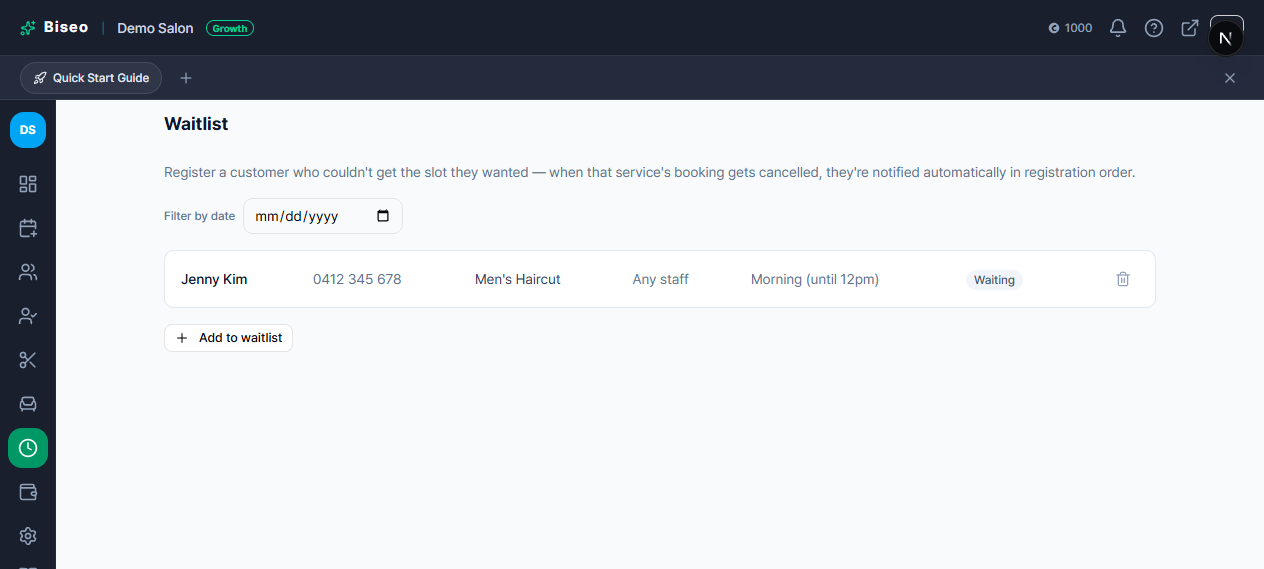
Once matched, the entry's status flips to "Notified" right there on the waitlist page:
What the notified customer sees
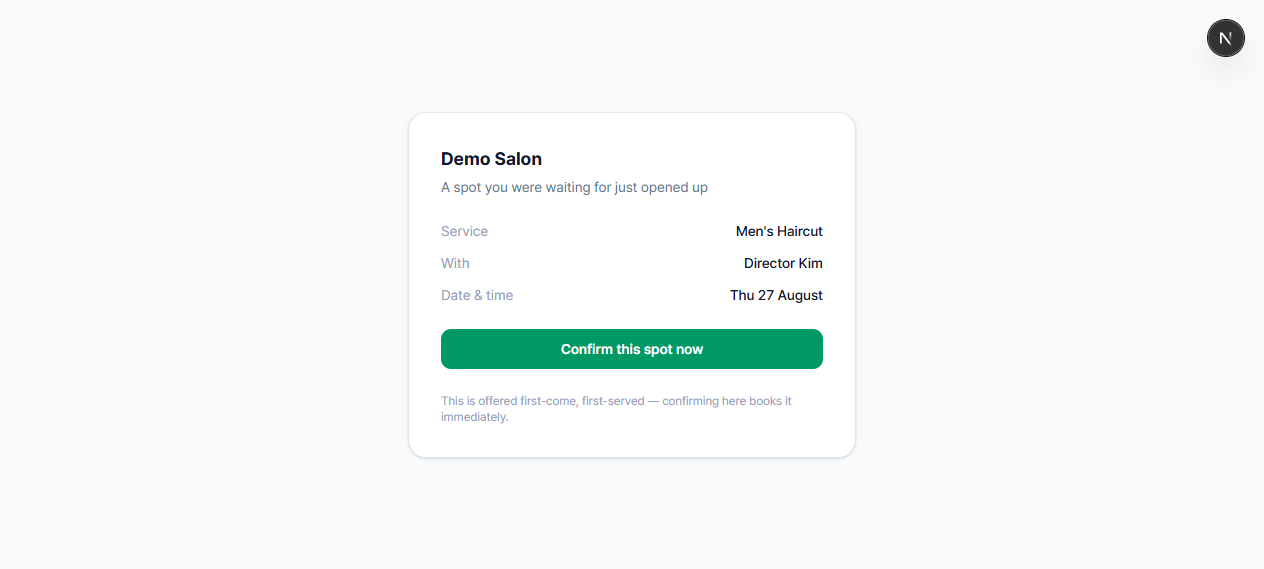
The notification includes a one-click link — no login needed. Opening it shows the offered service, staff member, and time, plus any other time that same staff member is actually free that day, so the customer isn't locked into the exact moment they were offered. Confirming books the slot immediately; the link only works once.
Customers can join without you
Customers can also add themselves to the waitlist from the public booking page when their chosen date is full — see Turning a fully-booked day into a booking, not a lost customer for that side of it.
Can't find what you're looking for? Contact us →