Turning a fully-booked day into a booking, not a lost customer
Last updated: 2026-08-27
A customer who opens your booking page and finds nothing available on the day they wanted often doesn't wait — they just book somewhere else. Letting them join a waitlist for that date gives them a reason to stick with you instead of a reason to look elsewhere.
This feature requires a Growth plan or above. Customer self-registration works automatically once it's enabled for your plan — there's no separate setting to turn on.
Letting customers join the waitlist themselves
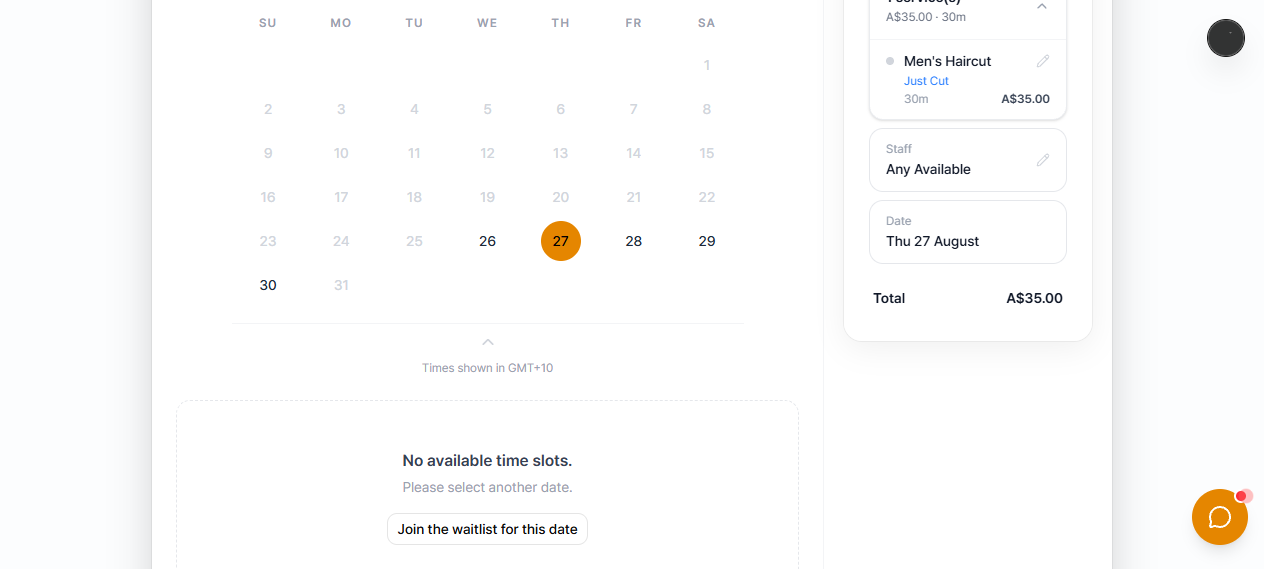
On your public booking page, when a customer picks a date with no available times left, they see a "Join the waitlist for this date" button (shown only when they're booking a single service):
Tapping it asks for their preferred time of day — morning, afternoon, or any time — and, if they're not already an identified customer, their name and phone number. No account or login is required.
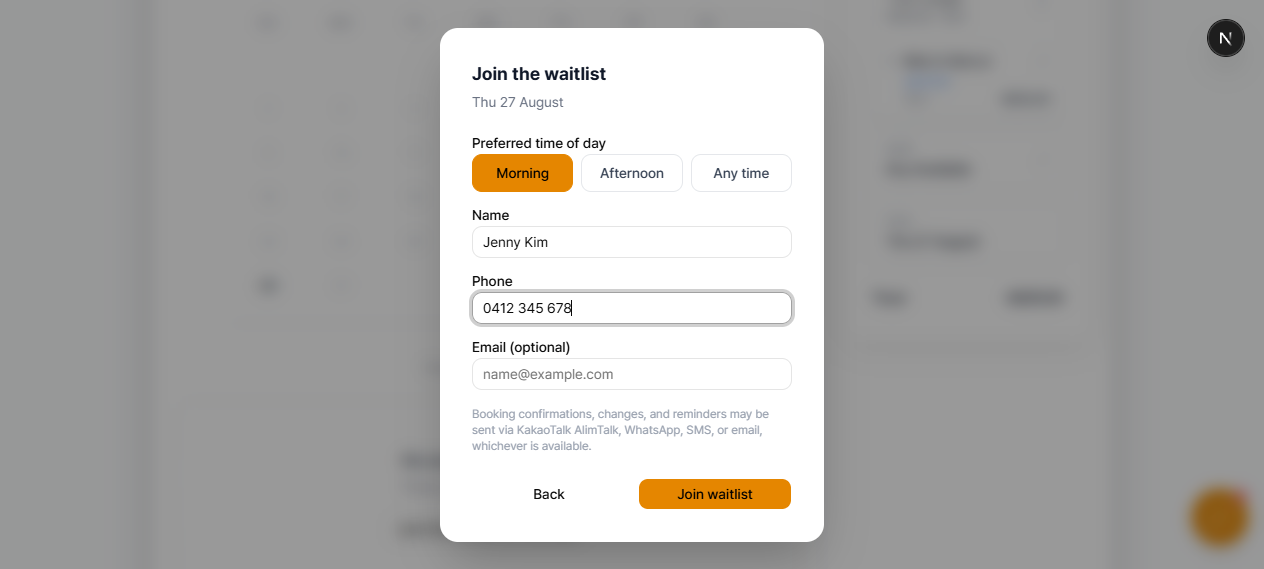
A customer can only be on the waitlist once for the same service and date — if they try to join again, they're told they're already on the list, so the same person doesn't end up stacked on it twice.
What happens after they join
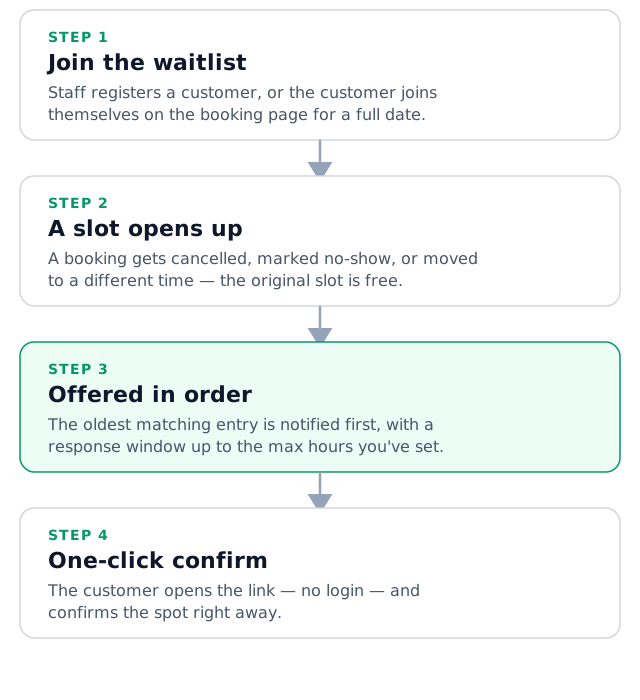
If a booking on that date gets cancelled, marked no-show, or moved to a different time, Biseo checks the waitlist in registration order and offers the freed-up slot to the first matching entry — see Managing the waitlist when you're fully booked for exactly how matching and the response window work, and how staff can register entries on a customer's behalf (useful when someone calls or messages the shop directly instead of using the booking page).
Claiming the spot
The notified customer gets a one-click link — no login needed — showing the offered service, staff member, and time, along with any other time that staff member is free that same day. Confirming books it immediately, the same way a normal online booking would (including any deposit or payment step your services require).
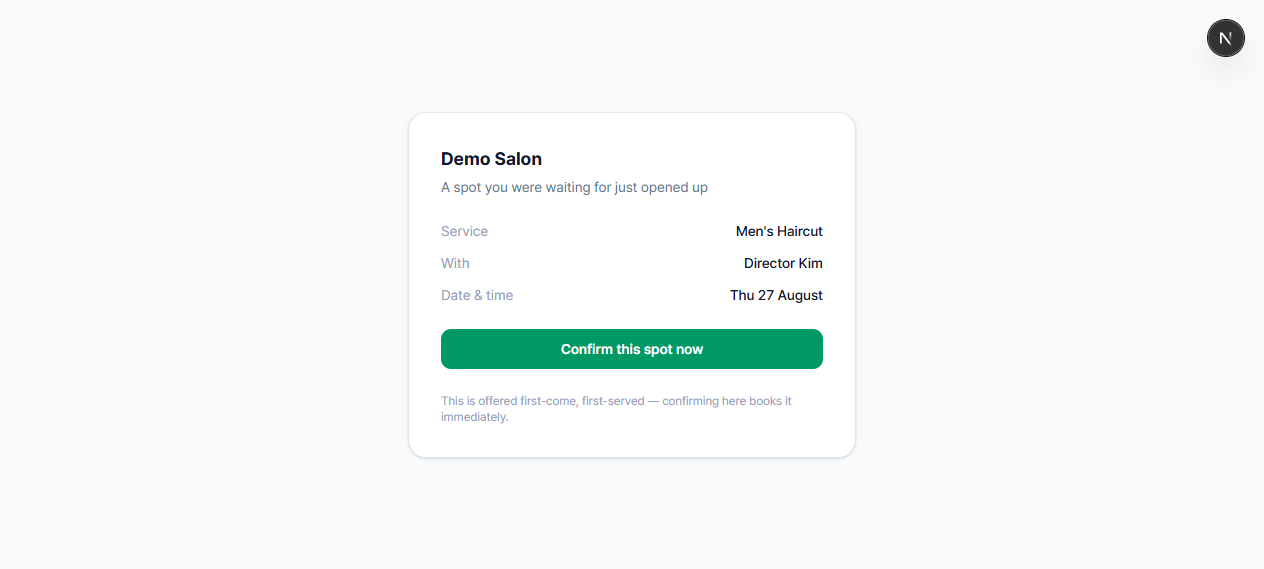
Example: a customer trying to book a Saturday facial finds the day fully booked, so they tap "Join the waitlist for this date" and say morning works best. Two days later, a Saturday-morning cancellation frees up a slot — they get a text with a link, open it, and confirm on the spot. Without the waitlist, that customer would likely have just booked with a different salon instead.
Can't find what you're looking for? Contact us →