Using drag-and-drop on the booking calendar
Last updated: 2026-08-27
Drag-and-drop on the calendar screen lets you handle common booking changes without digging through menus. Instead of opening a booking and editing fields one by one, a single mouse drag can change the time and the assigned staff member together, which is especially useful when the front desk is busy.
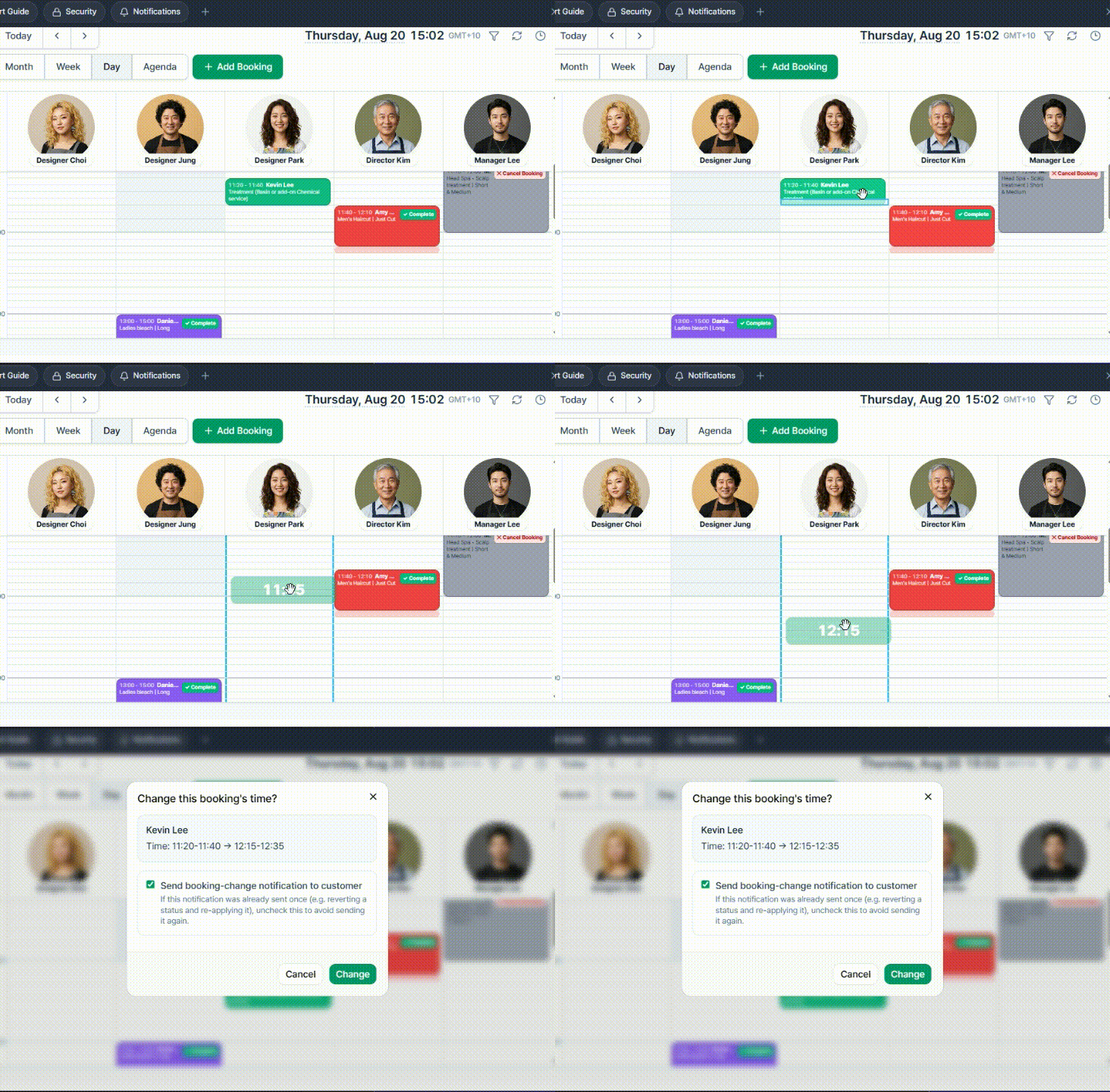
- Reschedule: click and hold a booking card, then drag it to a different time slot.
- Reassign staff: in day view (staff columns), drag a booking into a different staff member's column to change who it's assigned to.
- Adjust duration: dragging doesn't do this. Click the booking card to open its detail view, then use the +10/+20/+30 min and -10/-20/-30 min buttons under "Extend time (delays, etc.)" to lengthen or shorten it. (You can't shrink it below the service's own listed duration.)

Example: therapist B was rostered for a 10am Thai massage at a massage studio but calls in sick that morning. The manager, in day view, just drags B's 10am booking card from B's column across to therapist C's column, who's free — the staff reassignment is done. Later that same day, another customer's 60-minute massage runs over because the consultation took longer than planned. Dragging can't extend the appointment, so the therapist instead opens the booking card, goes to "Extend time (delays, etc.)", and clicks +10 min twice to add 20 minutes.
A popup asks whether to notify the customer whenever you change the time or staff assignment.
Can't find what you're looking for? Contact us →