Setting time-of-day price rules (dynamic pricing)
Last updated: 2026-09-03
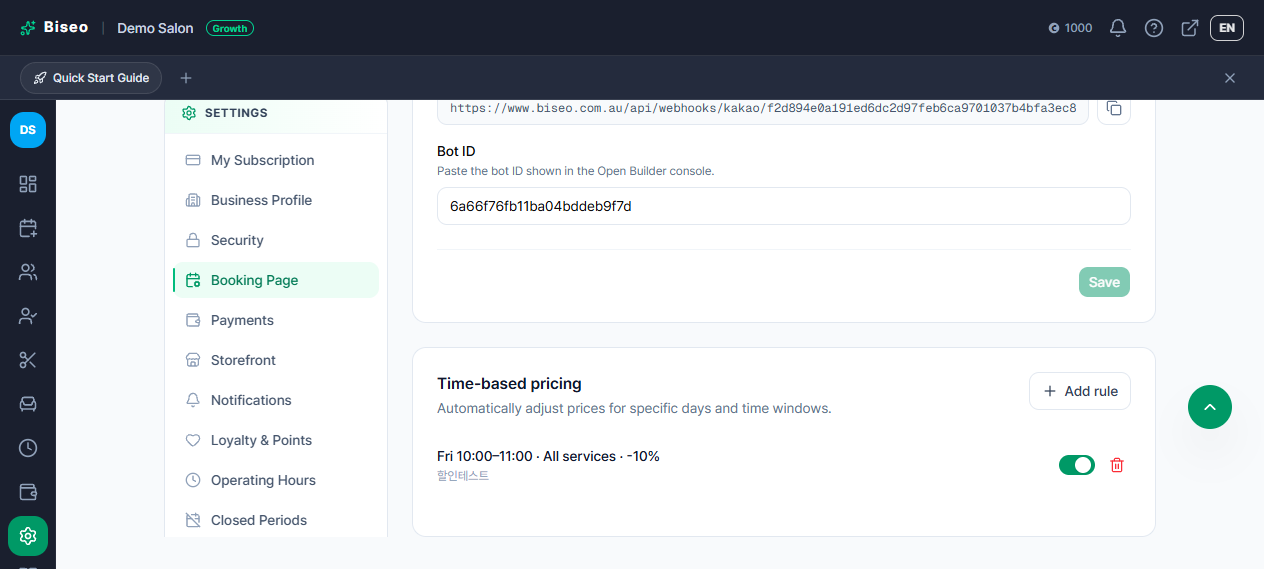
Under Settings > Booking Page, the "Time-based pricing" section lets you set up a surcharge or discount for whichever days and time windows you choose. You decide which slots to adjust and by how much — once a rule is saved, it's applied automatically to any booking made in that window (there's no automatic detection of which hours are actually busy).
This feature requires a Growth plan or above.
Adding a rule
Click Add rule and fill in:
- Service: a specific service, or "All services" to apply the rule across your whole menu.
- Days: tick one or more days of the week.
- Start time / end time: the window the rule applies in, snapped to your own booking slot interval so you can only pick times that line up with a real bookable slot.
- Adjustment type: a percentage (e.g. +15%) or a flat amount (e.g. -A$5.00). Use a positive number for a surcharge, a negative number for a discount.
- Note: an optional label for your own reference — customers never see it.
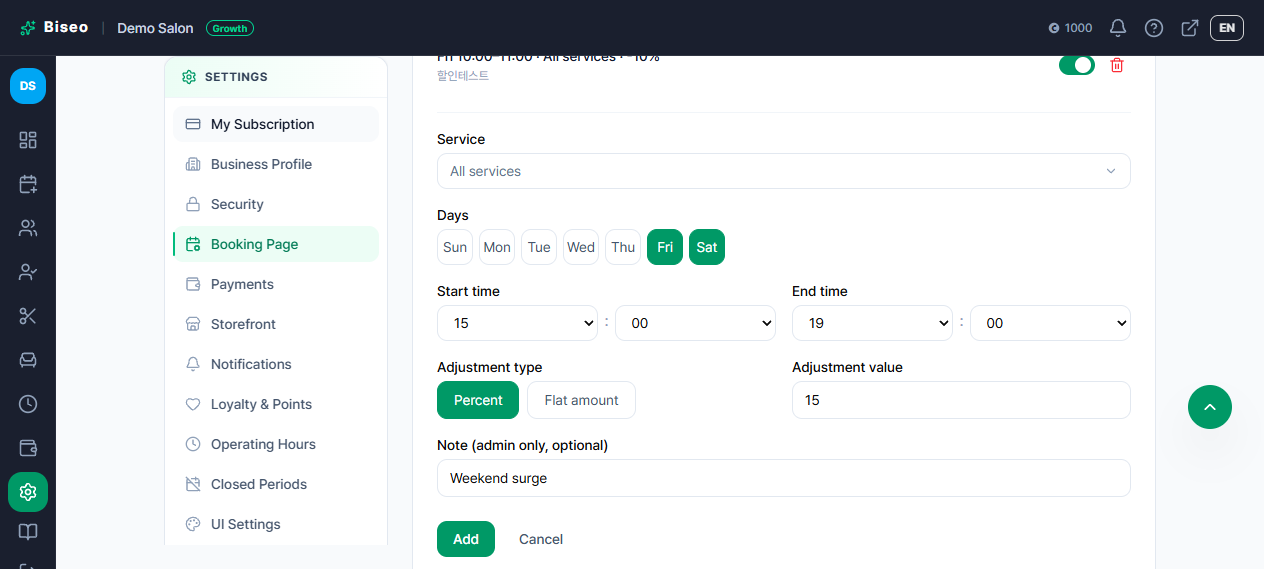
Example: if Friday and Saturday 3pm–7pm tend to fill up fast for you, add a +15% rule there across all services. If Tuesday and Wednesday mornings (9am–12pm) tend to sit quiet, add a -10% rule to nudge bookings into that window instead. You're the one deciding which windows count as "busy" or "quiet" — the system doesn't analyse your booking data and pick them for you.
If you try to save a rule that overlaps another rule for the same service (or the same "all services" scope) on the same day, saving is blocked — pick a different window or edit the existing rule instead. A service-specific rule can safely overlap an "all services" rule covering the same time; the more specific one simply wins.
Toggling and removing rules
Each rule has an on/off switch — turn a rule off to pause it without losing its settings, and back on whenever you need it again. The trash icon removes a rule permanently.
What customers see
The exact price customers are quoted always matches what they're actually charged — there's no separate "estimate" that could turn out wrong:
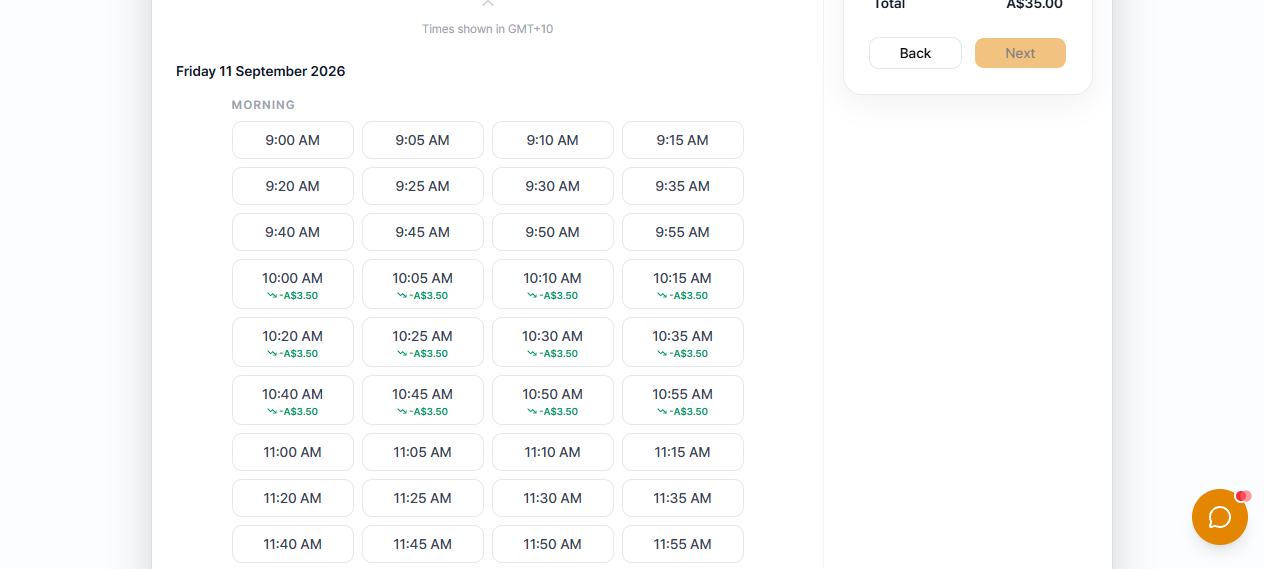
- On the public booking page, the time-slot picker shows a small badge (e.g. "+A$10.00" or "-15%") on any slot a rule applies to, so customers can compare times before picking one.
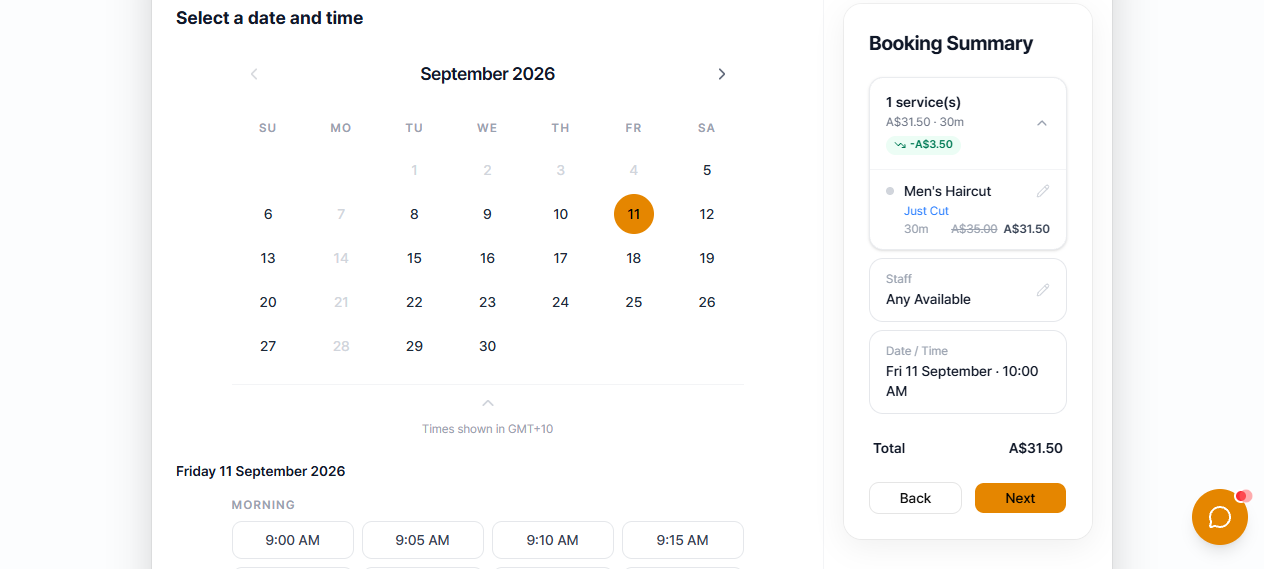
- Once a time is selected, the booking summary and the final confirmation screen show the original price with a strikethrough next to the adjusted price.
- If a customer books through the AI chatbot instead, the price it confirms is calculated the exact same way — never a mismatch between what the chatbot quoted and what the booking actually charges.
The adjusted price is locked in the moment a booking is created and never changes afterward, even if you edit or remove the rule later — exactly like every other price on a completed booking.
Scope
Rules apply per service, not per option within a service (for example, a rule can target "Colour" as a whole, but not just its "Full head" option specifically). If you need finer control than that, let us know what you're trying to do.
Can't find what you're looking for? Contact us →