Import your customer list from other software
Last updated: 2026-11-08
Moving to Biseo doesn't mean typing your clients in again. Export your client list from the software you use now as a CSV file, then import it in Customers → Import customers. It takes three steps, and you can undo it afterwards if something looks wrong.

Only people with permission to manage customers see the import button. That's the account you signed up with, and any team member you've given that permission to.
Step 1. Export your client list from your current software
Pick the software you're moving from in the import window and Biseo shows where the export is.
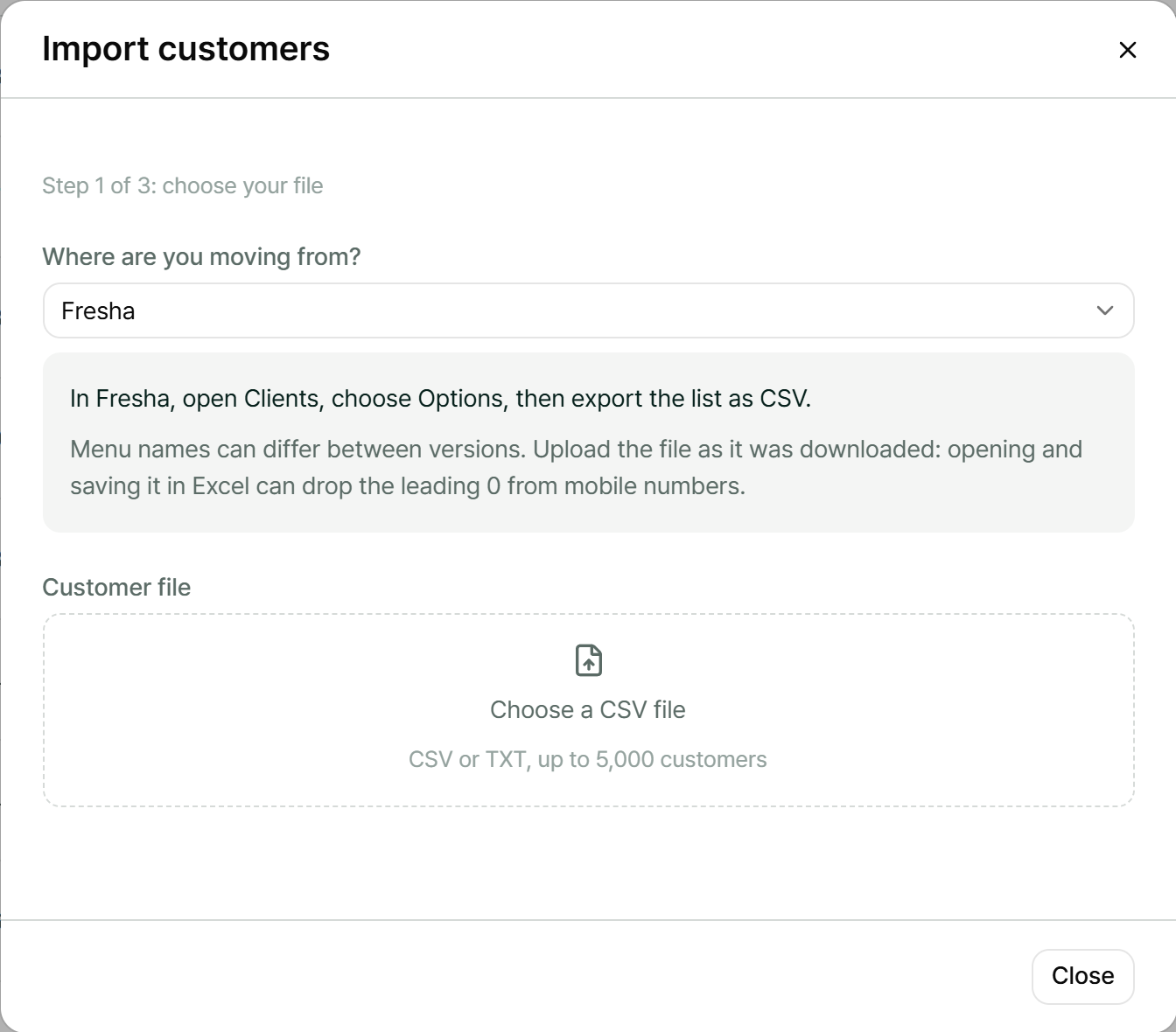
The usual places are:
| Software | Where to find the export |
|---|---|
| Fresha | Clients → Options → export as CSV |
| Timely | Reports → Customer List → download as CSV |
| Square Appointments | Customers → Import/Export → Export customers |
| Kitomba | Clients → Export Client List → CSV |
Menu names can change between versions. If you can't find it, ask your current software's support for a CSV of your client list.
Upload the file exactly as you downloaded it. If you open it in Excel and save it again, Excel can turn
0412 345 678into412345678, or even4.12E+08. Biseo puts the missing 0 back on its own, but a number shown like4.12E+08has lost digits and can't be recovered.
Step 2. Match the columns
Biseo reads the first row of the file (the column names) and guesses what each column is: first name, last name, mobile, email, birthday, gender or notes. Check each one and change it if it's wrong.
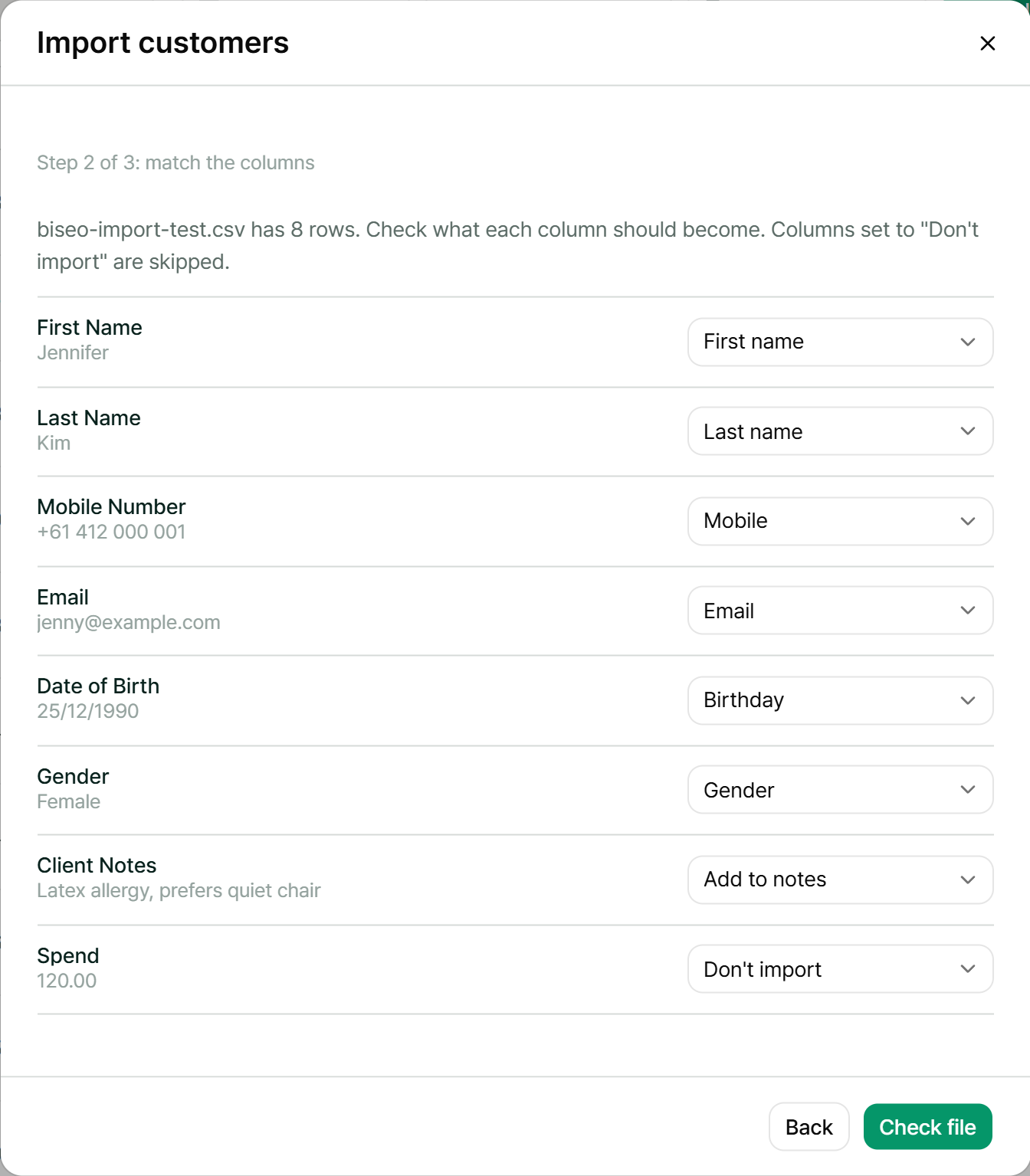
- Every customer needs a name, so one column has to be First name or Full name.
- Set columns you don't need, like "Total spend", to Don't import.
- Want to keep something that has no matching field, like allergies? Choose Add to notes and it's saved in the customer's notes.
Step 3. Check, then import
Before anything is saved, Biseo shows what will happen:
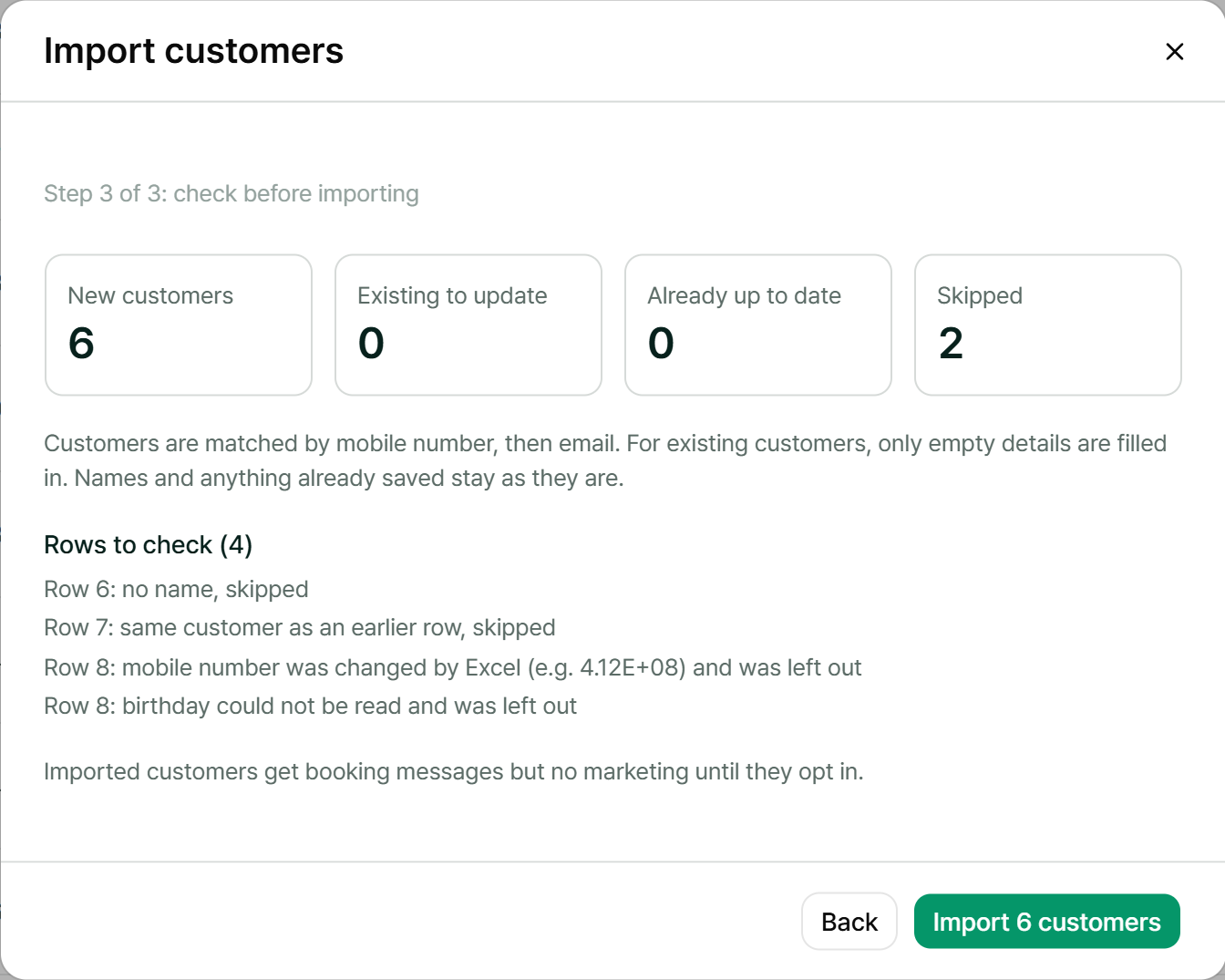
- New customers: people who aren't in Biseo yet.
- Existing to update: people you already have. Biseo matches them by mobile number first, then email.
- Already up to date: people you already have, where everything in the file is already saved in Biseo, so there's nothing to fill in.
- Skipped: rows with no name, or the same person appearing twice in the file.
Rows to check lists the skipped rows, plus rows that were imported with a detail left out. For example, a mobile number shown as 4.12E+08 or a birthday that can't be read is left out, and the rest of that customer's details are still imported. Row numbers match the line numbers you see when you open the file in a spreadsheet (line 1 is the column names).
When a customer already exists, Biseo only fills in empty details. Their name and anything you've already saved stay as they are.
Example: Jenny is already in Biseo with her mobile
0412 000 001but no email. Your Fresha file has her as "Jennifer Kim",+61 412 000 001,jenny@example.com. After the import she's still "Jenny", and her email is now filled in. No duplicate is created.
Importing the same file twice is safe. The second time, there's nothing new to add.
Marketing messages
Imported customers get booking messages (confirmations, reminders and so on, depending on your plan) but no marketing messages until they agree to them.
If your file has a marketing consent column and your clients agreed to marketing with your previous software, you can tick Bring over this file's marketing consent in step 3. Only tick it if that's true for these customers.
Undoing an import
Made a mistake, like the wrong column for mobile numbers? Open Import customers again and choose Undo import next to it under Recent imports.
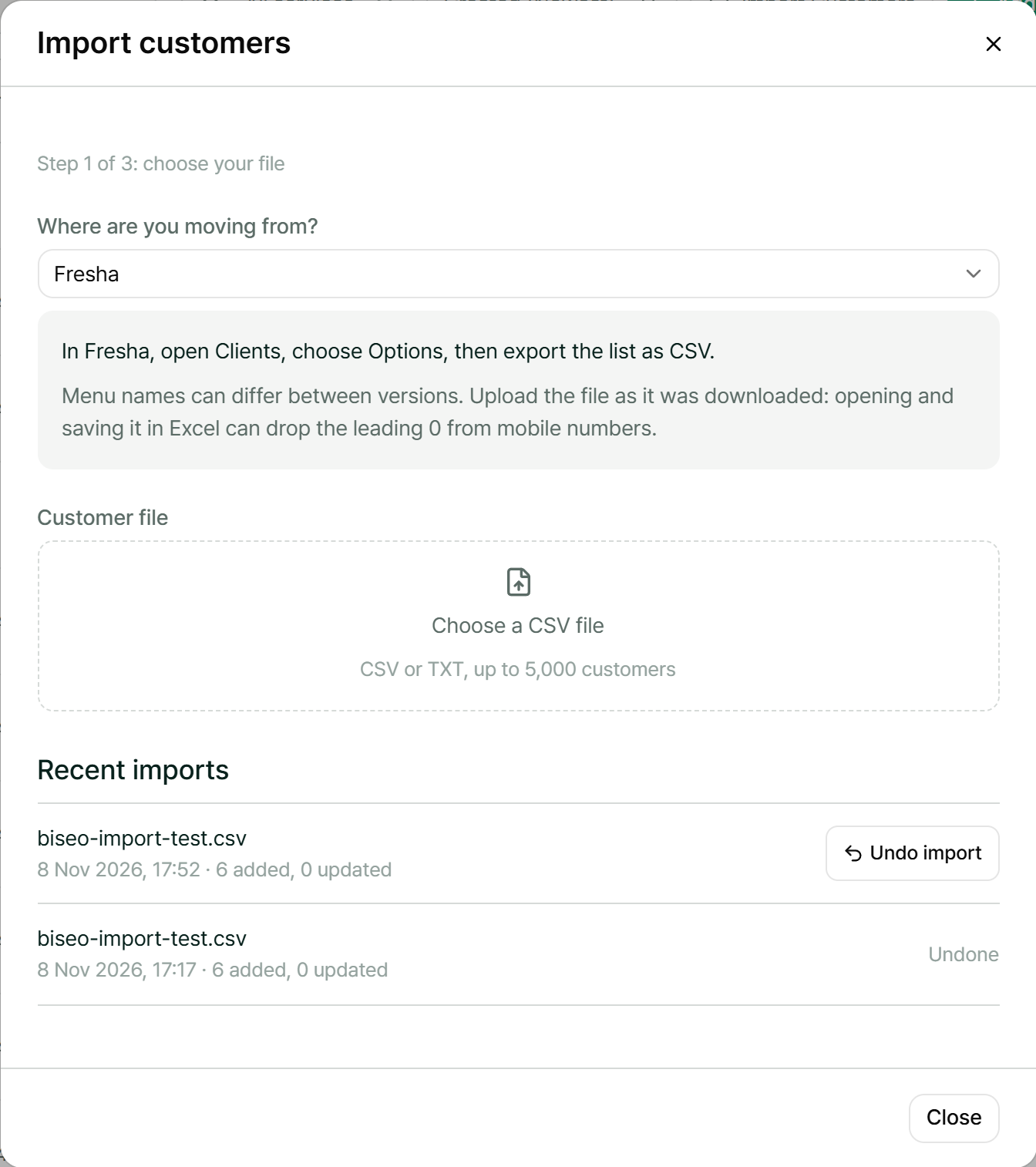
- Customers added by that import are deleted.
- Anyone who has had a booking or earned points since is kept, so you don't lose real history.
- Details filled in on customers you already had stay as they are.
Limits
- CSV or TXT files, up to 5,000 customers and 2 MB per file. For bigger lists, split the file and import it in parts.
- Only the client list is imported. Enter your services and opening hours in Settings; it's usually quicker than converting a file.
- Past and upcoming appointments aren't imported yet.
Stuck? Send us a message from the support page and we'll help move your list.
Can't find what you're looking for? Contact us →