Enabling Two-Factor Authentication (2FA) and Recovery Codes
Last updated: 2026-08-27
To protect sensitive information such as revenue and customer contact details, we recommend enabling two-factor authentication (2FA) on your account. With 2FA turned on, even someone who has worked out your password can't sign in without a second verification step, which substantially lowers the risk of your salon's revenue data or customer contact details being exposed.
Note: 2FA can be set up independently on the account you signed up with and on each invited team-member account. Turning on 2FA on one account doesn't protect the other, and neither can manage the other's 2FA — each person's 2FA only protects their own login.
Choosing a method
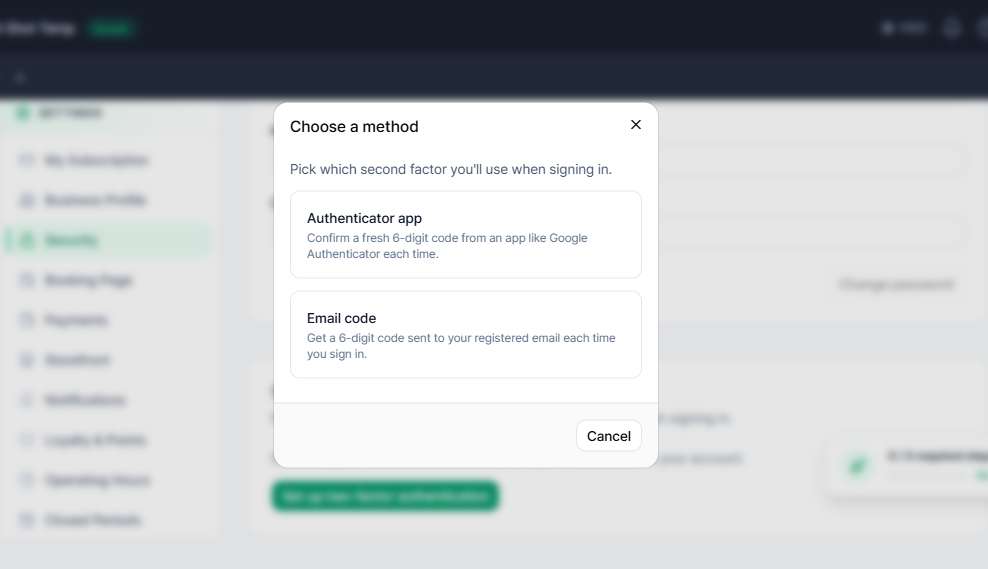
When you turn on 2FA, you pick one of two methods:
- Authenticator app: confirm a fresh 6-digit code from an app like Google Authenticator each time.
- Email code: get a 6-digit code sent to your registered email each time you sign in.
Setting it up
-
If you signed in with the account you signed up with, go to Settings > Security in the left-hand menu. If you signed in with an invited team-member account, go to My Profile instead.
-
Select "Set up two-factor authentication" and choose your preferred method.
-
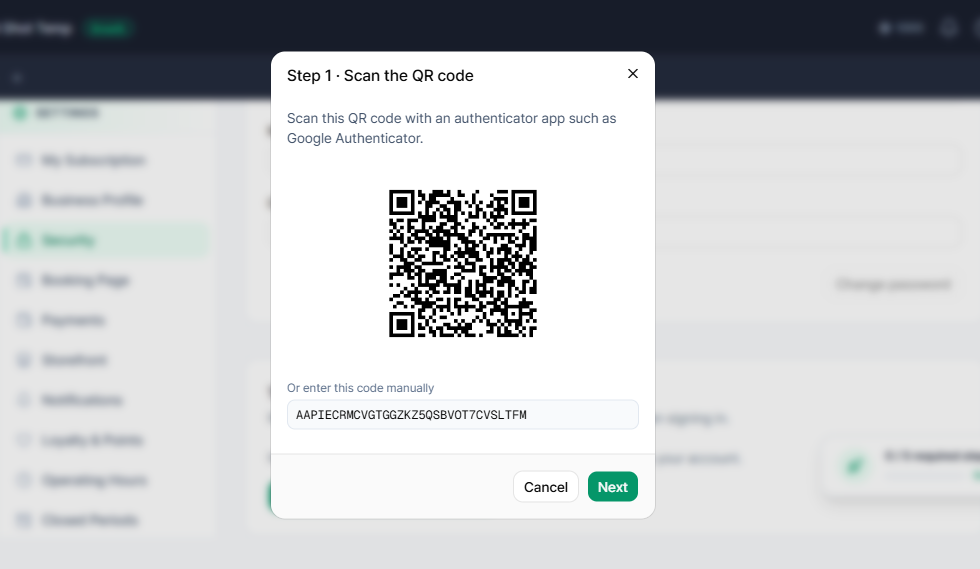
If you choose the authenticator app: scan the QR code shown on screen, then enter the six-digit code the app shows to confirm the link worked.
-
If you choose email code: a confirmation code is sent to your registered email — enter the 6-digit code you receive.
-
Important: whichever method you use, make sure to save the recovery codes shown on screen somewhere safe. They're the only way to regain access if you lose access to your authenticator app or your email.
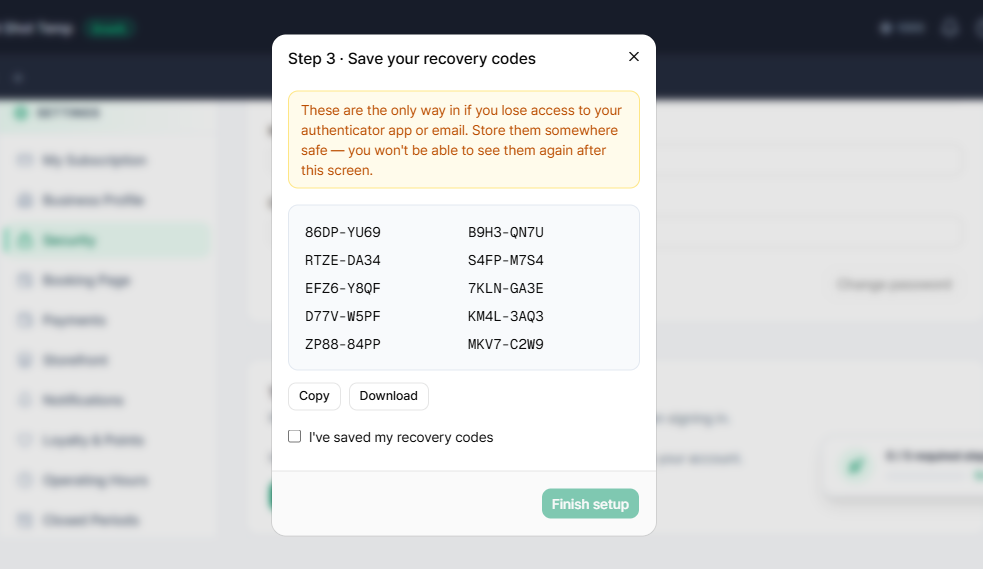
Example: Say an owner with 2FA enabled loses their phone and can no longer open Google Authenticator. Instead of entering a verification code at login, they enter one of the recovery codes saved when 2FA was first set up, and that lets them back into the account. If those codes hadn't been saved anywhere, they'd have neither a working verification method nor a recovery code and would be locked out — which is why it's worth storing the recovery codes somewhere safe, such as a password manager, as soon as you set 2FA up.
Can't find what you're looking for? Contact us →